
Published 2 March 2026, Updated 2 March 2026
Use Session Details to review one session in depth, including schedule composition, attendance capture, and closing results.
How to open:
- Right-click a session row in Attendance.
- Click Session Details.
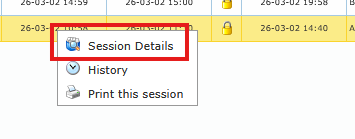
The dialog uses tabs:
- Details (always visible)
- Opening (always visible)
- Closing (visible only when the session is closed)
Details Tab – Label Reference
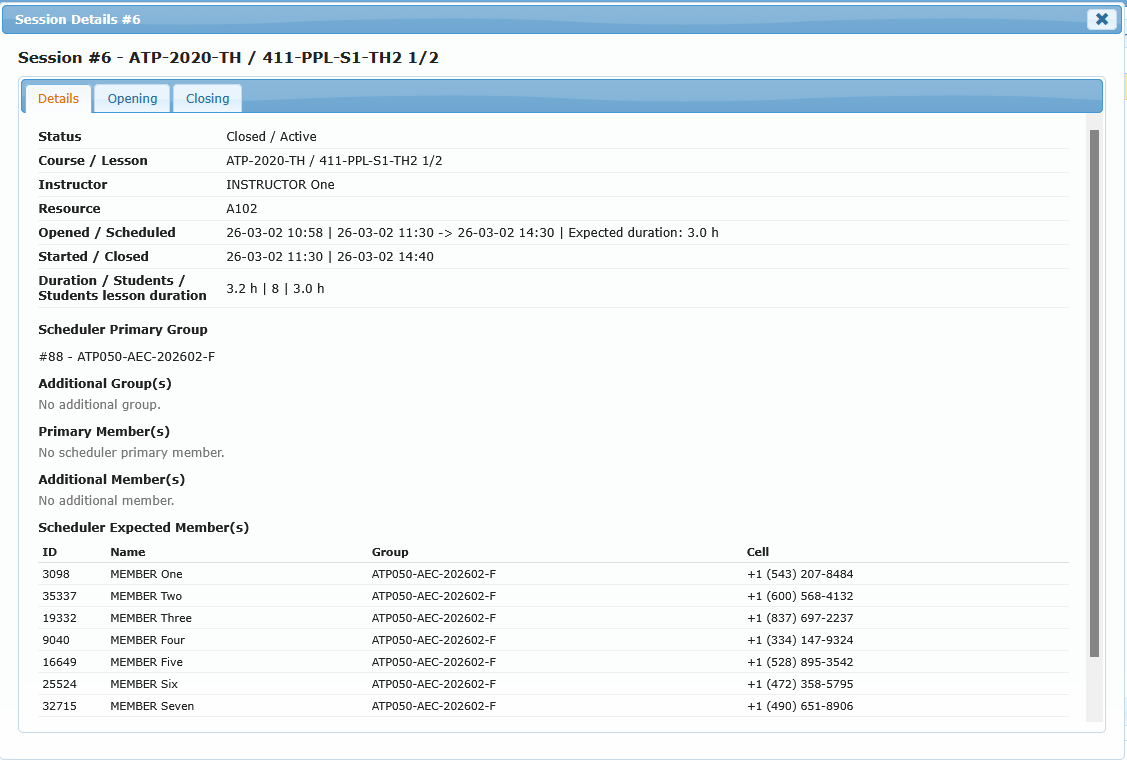
This tab explains what was planned in scheduler and key timing/status values for the selected session.
| Label shown in dialog | What it represents | How to read it |
|---|---|---|
| Status | Session completion + active state | Format is Open/Closed + Active/Inactive (example: Closed / Active) |
| Course / Lesson | Training course title and lesson title tied to the session | Confirms the exact training content linked to this session |
| Instructor | Instructor currently assigned to this session | Use to verify who was in charge operationally |
| Resource | Planned resource (aircraft/simulator/room/device) | Use for resource audit and mismatch checks |
| Opened / Scheduled | Session creation time + scheduled start/end time | Helps compare operational creation vs planning timeline |
| Expected duration | Planned lesson duration from lesson setup | Appears in Opened / Scheduled line when defined |
| Started / Closed | Real start timestamp + close timestamp | Confirms actual execution window and closing time |
| Duration / Students | Actual session duration + attendee count | Visible while session is still open |
| Duration / Students / Students lesson duration | Actual session duration + attendee count + per-student lesson duration value | Visible when the session is closed |
| Inactive By / Date | User who set session inactive + timestamp | Visible only for inactive sessions |
| Scheduler Primary Group | Main scheduled group(s) originally tied to the lesson slot | Baseline group planning for this session |
| Additional Group(s) | Extra group(s) attached in scheduler | Shows optional group extensions beyond primary group |
| Primary Member(s) | Main scheduled member(s) directly planned | Core planned members at scheduler level |
| Additional Member(s) | Extra member(s) manually added in scheduler | Shows ad hoc members added after initial planning |
| Scheduler Expected Member(s) | Combined expected attendees from scheduler composition | Operational reference of who should normally attend |
Interpretation of “No …” lines in this tab:
- No scheduler primary group.: no primary group is currently linked.
- No additional group.: no extra group was added.
- No scheduler primary member.: no direct primary members are listed.
- No additional member.: no extra individual members were added.
- No expected members from scheduler.: scheduler currently returns no expected attendees.
Opening Tab – Label Reference
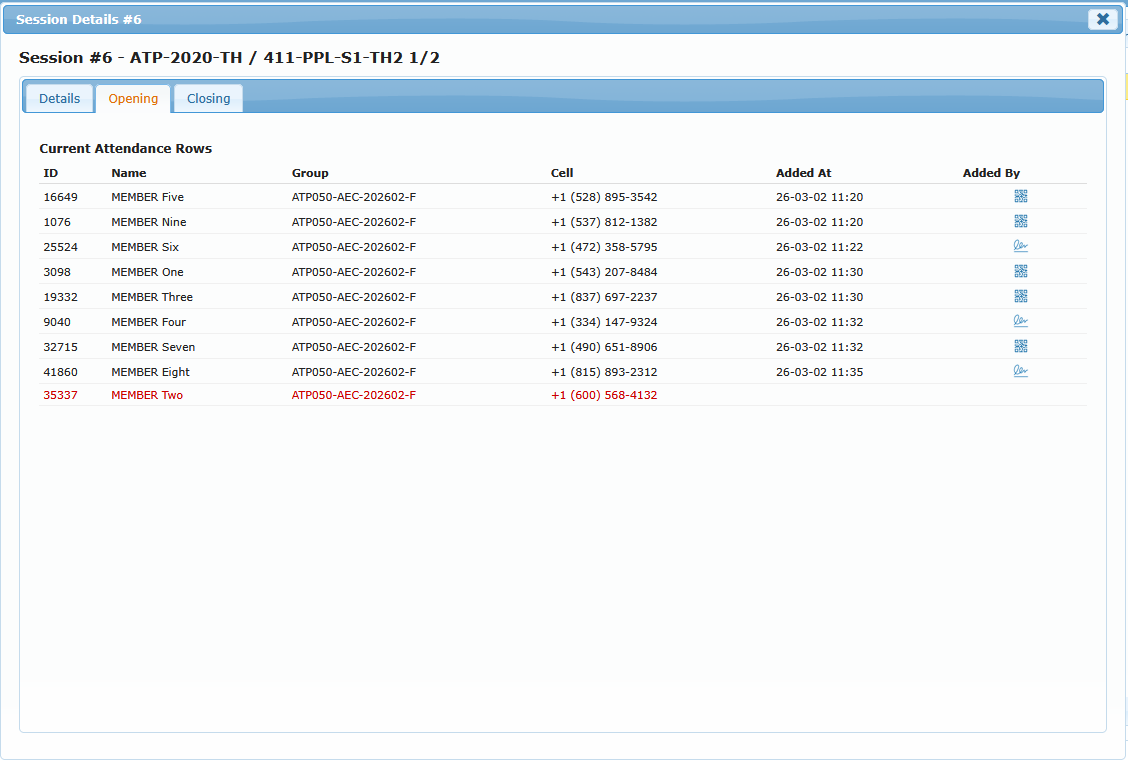
This tab shows attendance rows that currently exist in the active/opening state.
| Label shown in dialog | What it represents |
|---|---|
| Current Attendance Rows | Students currently present in session attendance rows at opening/live stage |
| ID | Student ID |
| Name | Student full name |
| Group | Student group label |
| Cell | Student mobile number |
| Added At | Time the student attendance row was added |
| Added By | Method used to register attendance row |
Added By icon meaning:
- QR icon: attendance row was added by unique QR identification scan.
- Signature/select icon: attendance row was added through select/sign flow.
Closing Tab – Label Reference
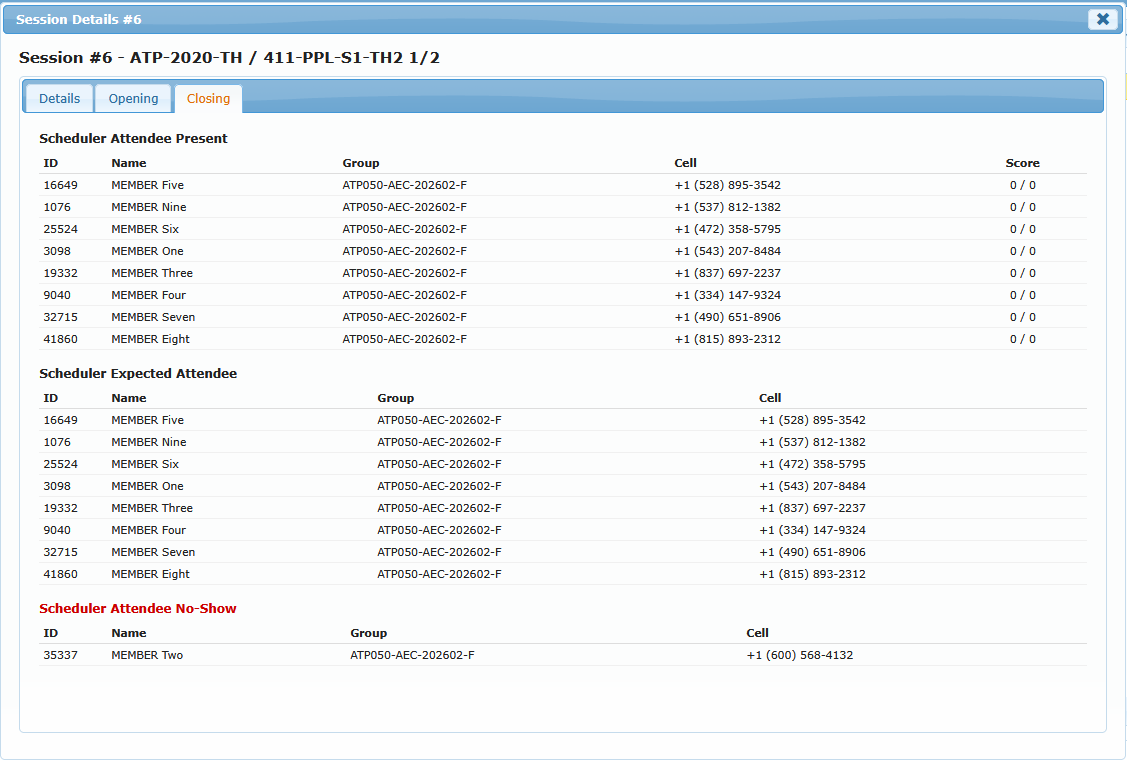
This tab appears only after session closure and separates planned-vs-real attendance outcomes.
| Label shown in dialog | What it represents |
|---|---|
| Scheduler Attendee Present | Expected attendees confirmed as present at close |
| Scheduler Expected Attendee | Expected attendees from scheduler reference list |
| Scheduler Attendee No-Show | Expected attendees marked absent/no-show at close |
| Score | Student score and maximum score (score / max) when lesson scoring is required |
Score display rule:
- Score column is shown only when the lesson requires scoring.
Operational use:
- Use Details to validate planning composition and timeline context.
- Use Opening to confirm how attendance was captured during live operation.
- Use Closing to verify final present/expected/absent status after closure.