
Published 11 February 2026, Updated 26 February 2026
Event types are the activity choices shown to users during punch-in.
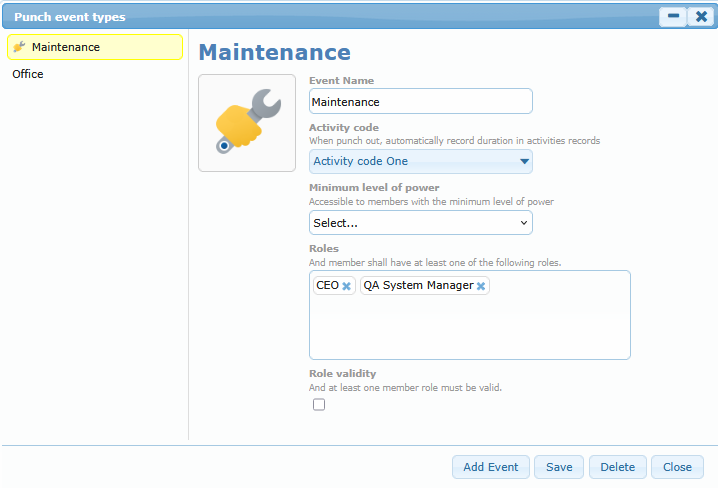
You can:
- Create new event types.
- Edit names and settings.
- Update icon images.
- Deactivate event types not used anymore.
If an event type is inactive, users cannot select it for new punches.
In Event Type settings, you can control who is allowed to see and use that event card:
- Minimum level of power: only users at or above this level can access this event card.
- Roles: the user must have at least one of the selected roles.
- Role validity:
- if checked, at least one selected role must currently be valid;
- if not checked, role validity is not required for access.
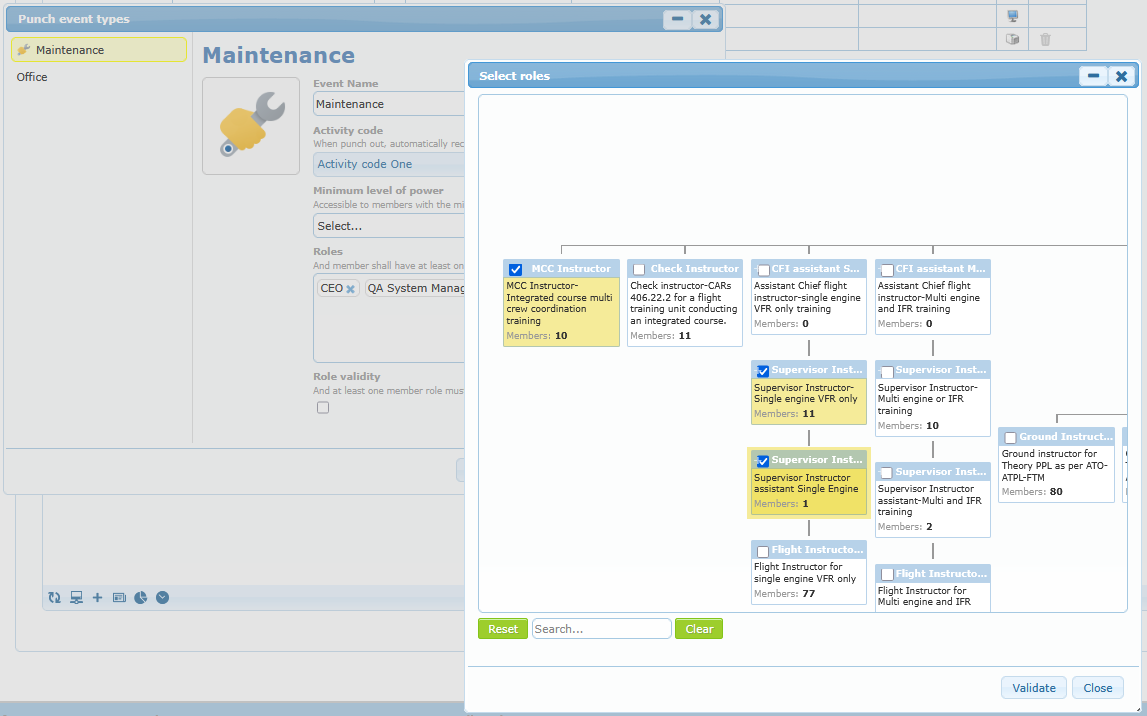
How to add roles
To add roles, open the event type, then click inside the Roles area. A role selector window opens. Select one or more roles, then confirm. The selected roles will appear as tags in the Roles box.
How to remove roles
To remove a role, click the small x on that role tag inside the Roles box. Remove all tags if you want no role restriction.
Activity code
Choose the activity code linked to this event type. When punched out than more than 6 minutes, an activity record will be created in the member activity sheet.
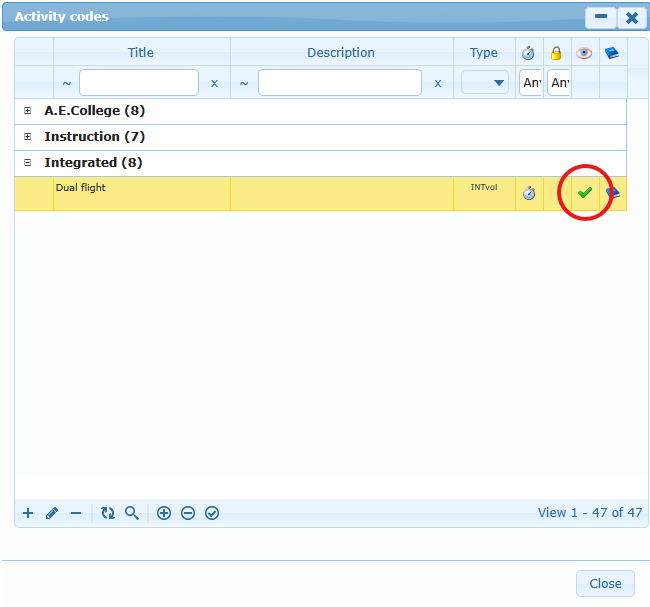
To enforce the clock puncher to be the only system to validate an activity, select an activity code that is hidden from the user in the manual “add activity” page. Otherwise, member will still be able to add activity manually.
Access logic summary
This access filter is cumulative. The user must satisfy the minimum level condition, and must also satisfy the role condition when roles are configured.