
Published 14 February 2026, Updated 26 February 2026
This selection controls who is allowed to use the mobile app punch page for punch in and punch out.
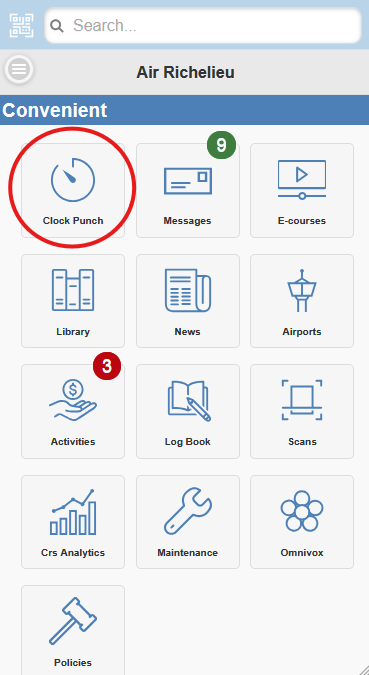
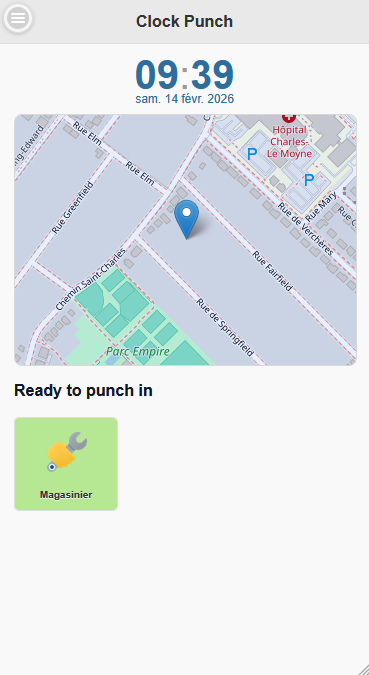
If a member is not in this selected list, they cannot use the app punch page and must use regular approved punch methods.
Why this exists:
- It limits mobile punch access to approved people only.
- It gives administrators controlled rollout by team, location, or role.
- It keeps mobile punching auditable because app punch records include device geolocation data.
Enabling clock punching via personal mobile device with geolocation reduces administrative control over attendance validation.
When this option is activated:
- Physical presence cannot be verified with the same level of certainty as on-site punch stations.
- Location data accuracy depends on the employee’s device, GPS signal quality, and system permissions.
- Employees may disable location services, manipulate settings, or punch near — but not necessarily within — the intended work area.
- Real-time supervision is limited compared to fixed punch terminals.
By enabling this feature, the administrator acknowledges that:
- Validation relies primarily on system-declared geolocation.
- There is an increased risk of inaccurate or disputed punch records.
- Additional monitoring or audits may be required if inconsistencies arise.
This option should only be enabled when operational flexibility outweighs the need for strict attendance control, such as remote work .
Where to open it
- Open Activities accounting center.
- Open the Clock Puncher tab.
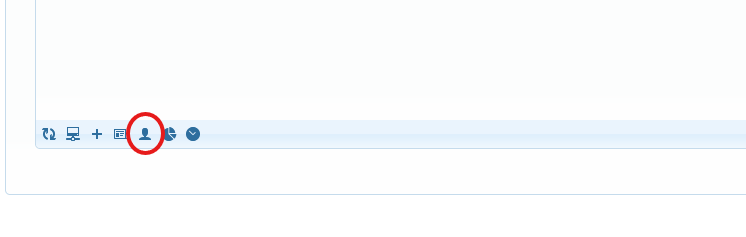
- In the punch grid toolbar, click Manage members using App Puncher.
- The dialog Phone App Geolocation Members opens.
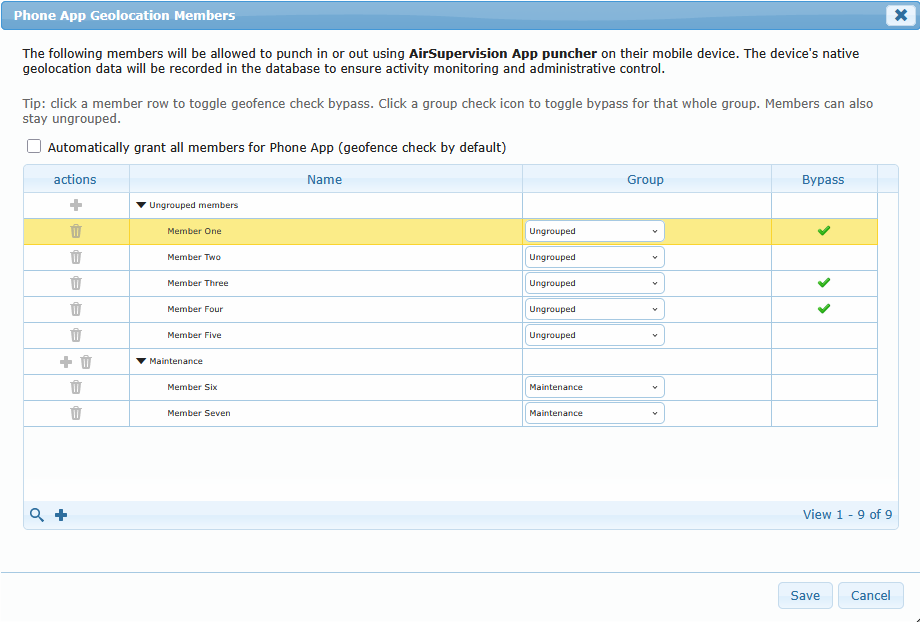
After opening, you work in one tree-style table:
- Ungrouped members section
- Custom groups (if any)
- Member rows inside each section
All changes are local until you click Save.
How to use every control in this dialog
Grant all members checkbox (top of dialog)
- Automatically grant all members for Phone App:
- ON: everyone is allowed to use App Puncher.
- OFF: only configured members are allowed.
- Geofence rule still applies by default.
- Bypass exceptions are controlled in the Bypass column.
Grid toolbar buttons
- Search icon: show/hide the filter toolbar.
- Use the
NameorGroupsearch fields to narrow the list.
- Use the
- Add Group icon: create a new group.
- Enter a group name.
- Group appears as a parent row in the tree.
Group rows (parent rows)
Each group row has inline action icons:
- Add member icon (+):
- Opens member search popup.
- Search uses autocomplete (same member lookup engine as other member search fields).
- Select a member and click Add.
- Member is inserted under that group.
- Delete group icon (trash):
- Confirmation is required.
- Group is removed.
- Members from that group are moved to Ungrouped members.
Member rows (child rows)
Each member row has:
- Group dropdown:
- Change the member’s group directly from the row.
- Select Ungrouped to remove group assignment.
- Bypass cell:
- Click anywhere in the
Bypasscell to toggle geofence bypass. - A check icon appears when bypass is enabled.
- Enabled bypass means this member can punch via app even when outside configured geofences.
- Click anywhere in the
- Delete member icon (trash):
- Confirmation is required.
- Removes member from App Puncher member configuration.
Add member popup
When Add member is clicked:
- Type at least 2 characters in search.
- Select the correct person from suggestions.
- Click Add.
- Member is added under the selected group (or Ungrouped).
Important:
- Same member cannot be added twice.
- If member already exists, no duplicate row is created.
Practical workflow (recommended)
- Decide whether to use Grant all members ON or OFF.
- Create groups if needed.
- Add members under each group.
- Reassign members with the Group dropdown as needed.
- Toggle bypass only for exceptions.
- Remove incorrect members/groups.
- Click Save once when all edits are complete.
If you close the dialog or press Cancel, unsaved edits are discarded.
Save and rollout impact
After clicking Save, the selected list becomes the active authorization list for mobile app punching.
Operational impact:
- Added members can use app punch flow (subject to their normal account permissions and app access).
- Removed members lose app punch access and must use other punch methods.
- If no members are selected, no one can use mobile app punch.
- If Automatically grant all members for Phone App is enabled, all members can use app punch flow.
- Even with Grant all members enabled, geofence checks remain active by default for everyone.
- Only members explicitly marked with geofence bypass are exempt from geofence checks.
[SCREENSHOT:ADMIN_APP_PUNCH_MEMBER_SAVE] Description suggestion: Save confirmation message after updating phone app geolocation members.
Recommended admin process
Use this sequence for clean operations:
- Decide target members before editing.
- Add or remove all required members in one session.
- Click Save once.
- Ask one selected member to test a real punch from app.
- Ask one non-selected member to confirm access is blocked (expected behavior).
- Keep an internal log of who was authorized and when changes were made.
Common mistakes to avoid
- Forgetting to click Save after editing the list.
- Adding the wrong person due to similar names.
- Assuming device authorization alone grants app punch rights.
For mobile punch to work as expected, combine:
- correct member selection in this dialog
- normal user access permissions
- device geolocation enabled on the phone