
Published 26 February 2026, Updated 26 February 2026
Use this view to audit mobile app punch activity on a map for a selected period. It helps you quickly understand where mobile punches happened, how many check-ins/check-outs were recorded, and whether punches were inside expected geofenced areas.
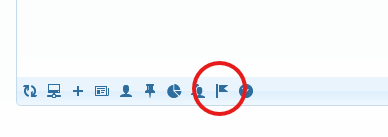
How to open this view
- Open the Activities accounting center.
- Go to the Clock Puncher tab.
- Click App punch history map in the grid toolbar.
- The map dialog opens.
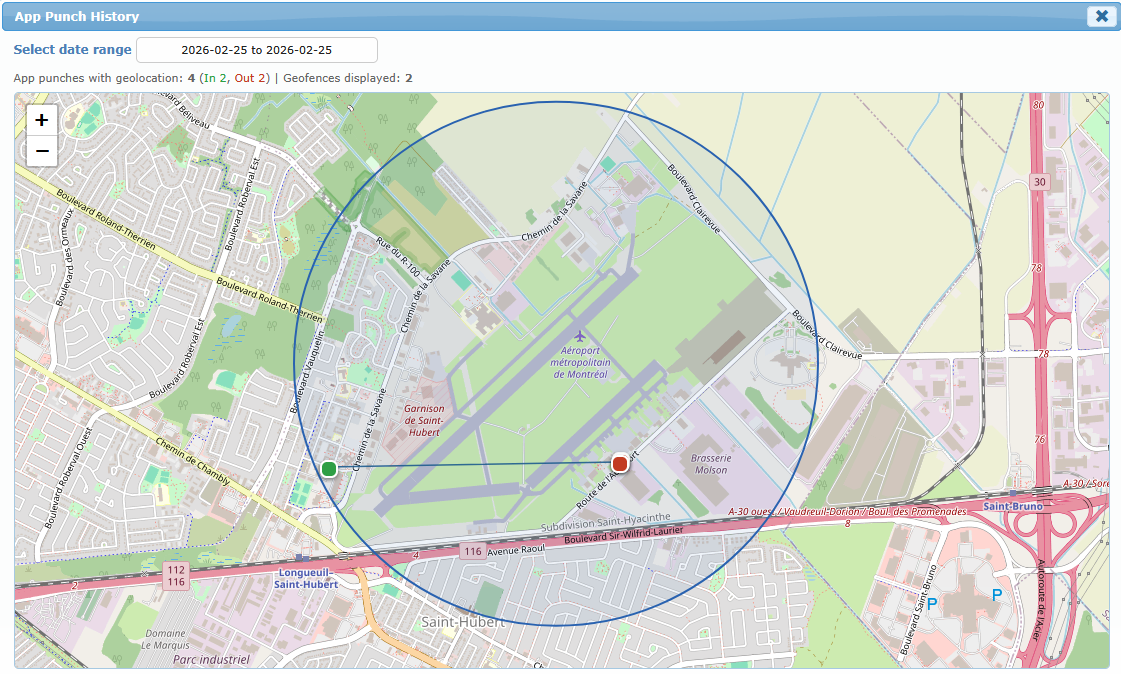
Default behavior when it opens
- The date range is set to today.
- The map loads all mobile app punches found in that period.
- The map also draws all enabled geofences.
Date range filter
Use the date range selector at the top of the dialog to change period.
What happens when you apply a new range:
- The map reloads mobile app punches for that period.
- Geofences remain visible for geographic context.
- The summary line updates counts.
Meaning of map items (legend)
Use this legend to read the map quickly:
| Map item | Meaning |
|---|---|
| Green dot marker | A mobile app check-in punch. |
| Red dot marker | A mobile app check-out punch. |
| Numbered cluster circle | Multiple punches grouped at lower zoom levels. Zoom in to split into individual markers. |
| Blue zone shape | An enabled geofence area (circle, box, or polygon). |
| Marker hover tooltip | Shows the person name, action type (IN/OUT), and punch date/time. |
| Solid thin blue line (after marker click) | Link between the selected punch and its matching paired action (check-in paired with check-out) when a valid pair exists in the loaded range. |
Important notes:
- If a selected marker has no valid matching pair in the loaded period, no linking line is shown.
- The line is a visual aid only for review; it does not change records.
Summary line meaning
The text above the map summarizes:
- Total mobile punches with usable location.
- Count of In punches.
- Count of Out punches.
- Number of geofences currently displayed.
Recommended review workflow
- Start with today to verify current operations.
- Expand to a larger date range for incident or payroll review.
- Hover suspicious markers to identify person and time.
- Click marker to check if the paired action is coherent on map.
- Compare marker locations against visible geofences.
- If needed, return to the punch grid for detailed correction actions.