
Published 27 February 2026, Updated 28 February 2026
The More tools dialog is the central batch administration workspace. Open it when you need to apply one operation to many members at once.
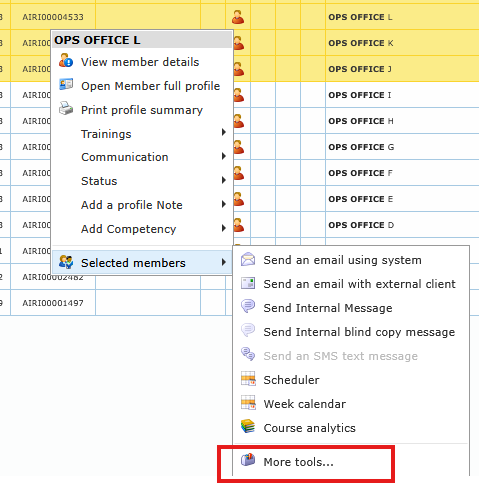

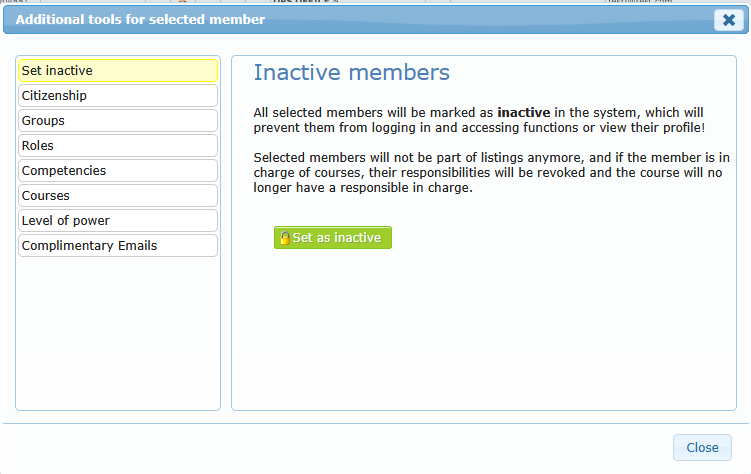
Available tool sections can vary by role, but usually include the following:
Set inactive
Marks selected active members as inactive. Inactive members are hidden from normal activity flows and course responsibilities can be removed.
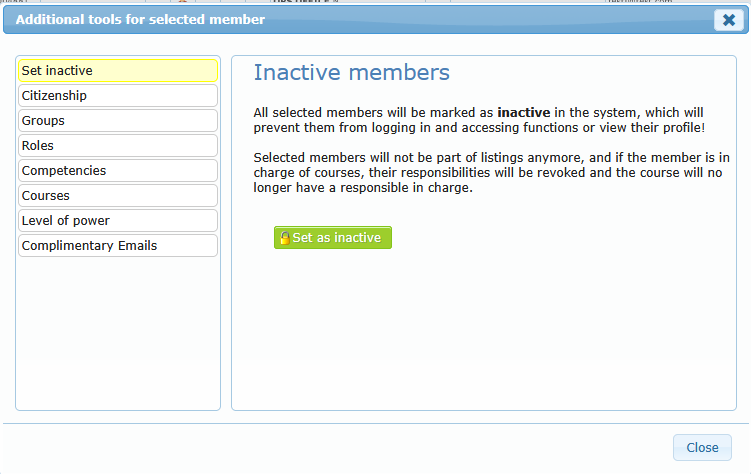
Citizenship
Sets citizenship for selected members, mainly when that value is empty.
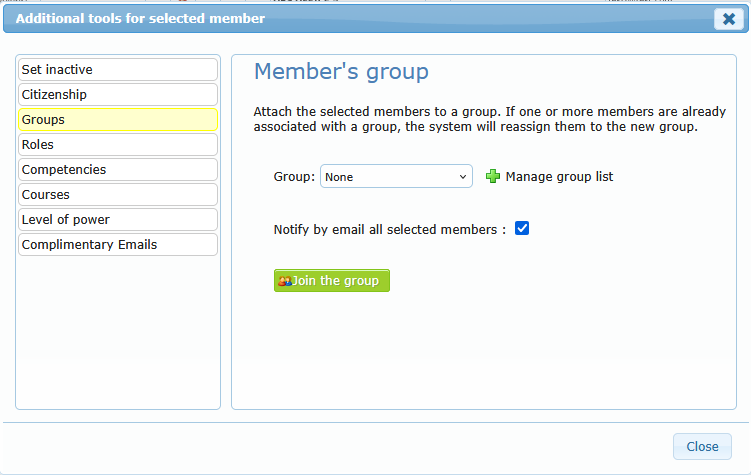
Groups
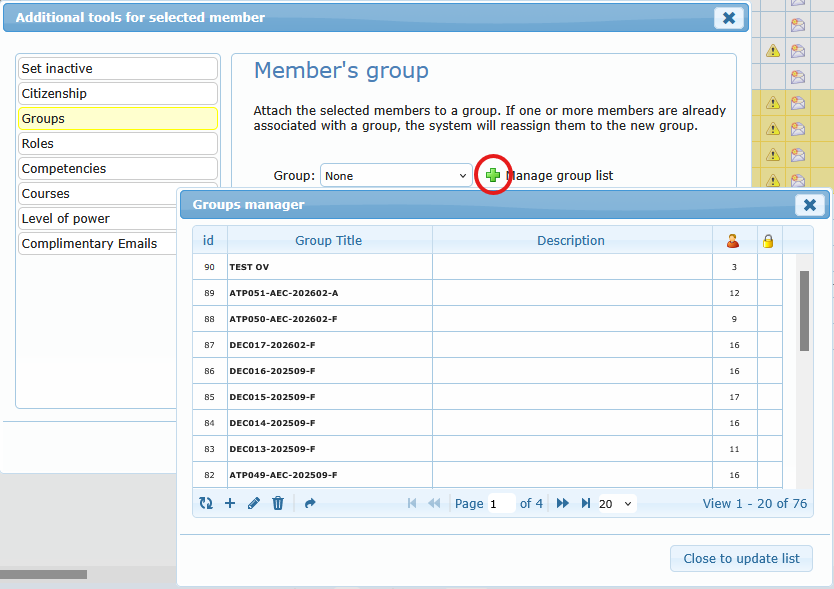
Assigns selected members to a group, with optional email notification. You can also open group list management (if your role allows it).
Roles
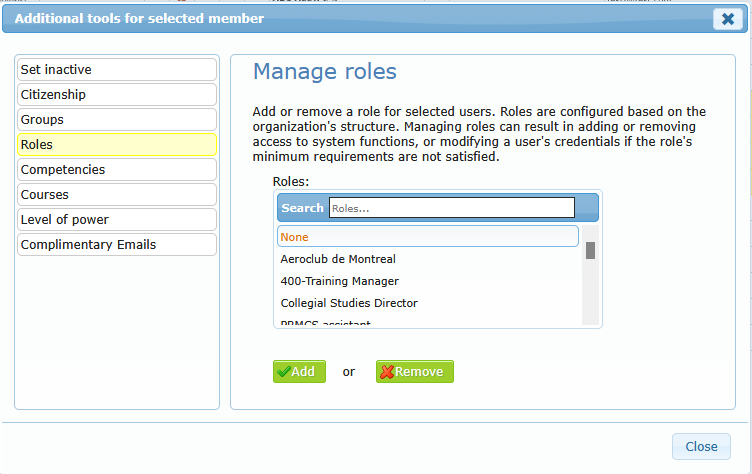
Adds or removes a role for all selected members. This can change access rights and available functions.
Competencies
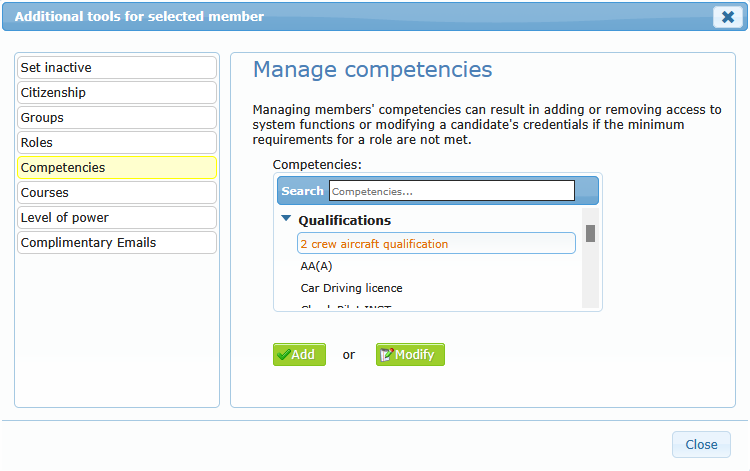
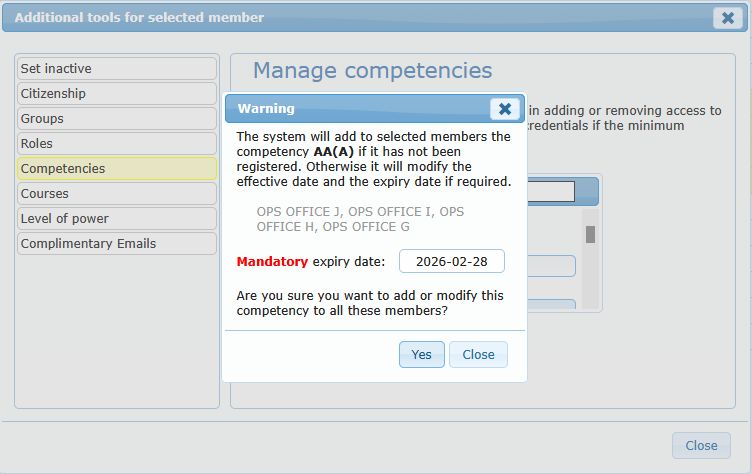
Adds or updates a competency for all selected members. Some competencies require an expiry date, others allow optional expiry.
Courses
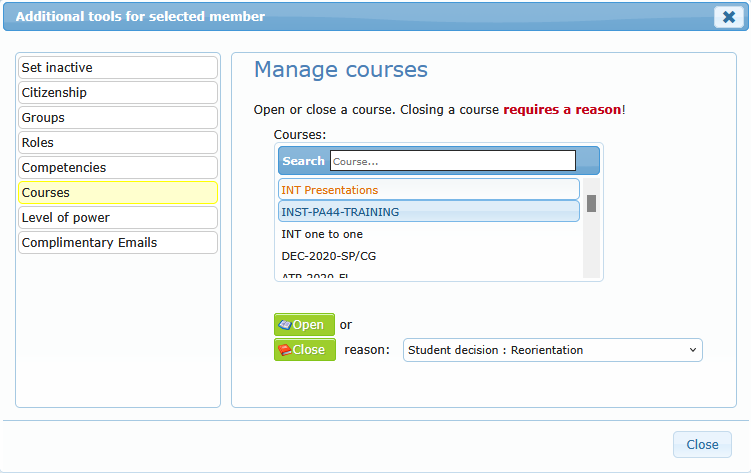
Batch-enrolls selected members into a course or closes matching open courses. Closing requires a reason.
Level of power
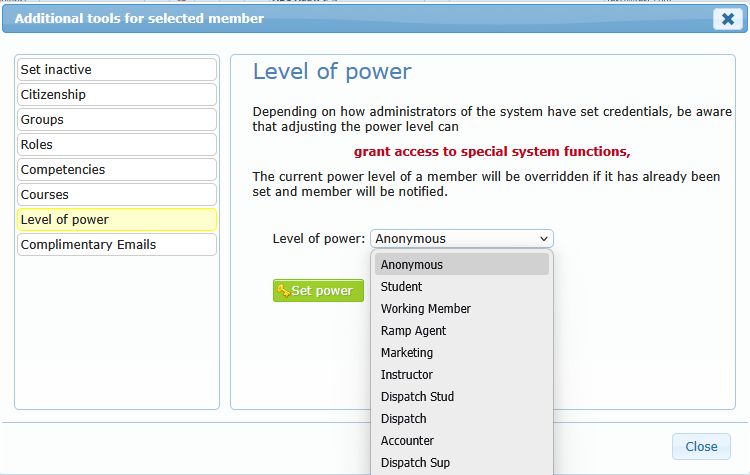
Sets the same power level for all selected members (only for authorized profiles). Use carefully because this can significantly change user access.
Complimentary Emails
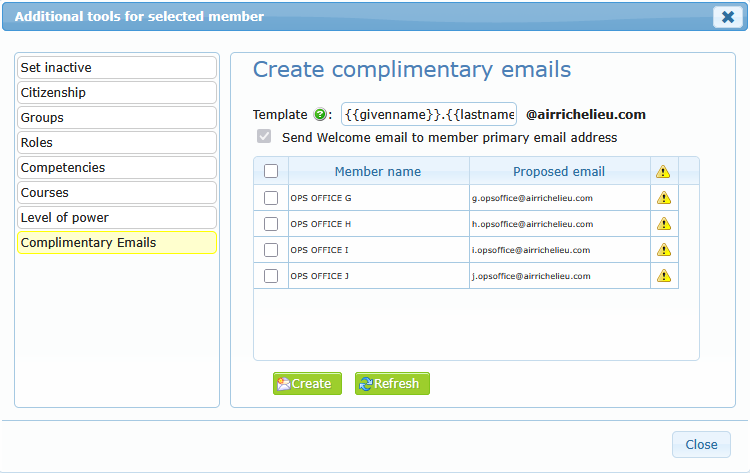
Creates complimentary email addresses for selected members. A welcome message can be sent to each member primary email.
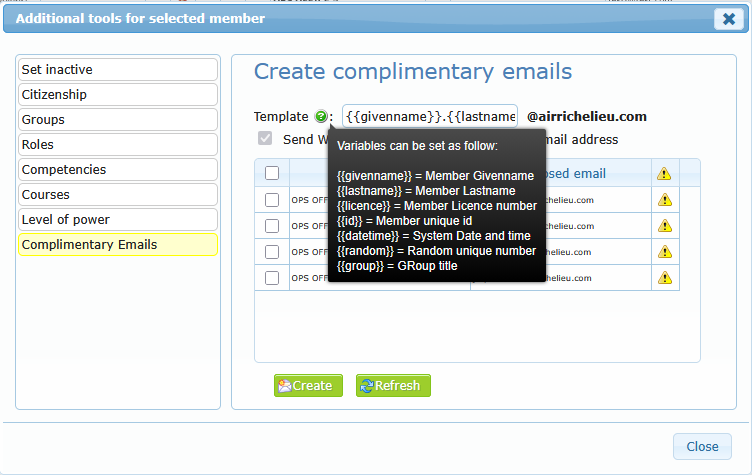
Allowed Characters in the Local Part (before the @ symbol)
Using template values to generate dynamic email addresses based on member’s data shall however follow compliance rules. .The local part of an email address is everything that appears before the “@” symbol.
It may contain:
Letters
Uppercase and lowercase letters (A–Z, a–z)
Digits
Numbers (0–9)
Special characters
The following special characters are allowed:
! # $ % & ‘ * + – / = ? ^ _ ` { | } ~
Dot (.)
A dot is allowed, but with the following restrictions:
- It cannot appear at the beginning of the email address
- It cannot appear at the end
- Two dots cannot appear next to each other
For example, john.doe@example.com is valid, but .john@example.com, john.@example.com, and john..doe@example.com are not valid.
Quoted addresses (advanced usage)
If the local part is enclosed in double quotation marks, it may contain additional characters, including spaces. However, this format is uncommon and many modern systems do not accept it. For example:
“john..doe”@example.com
For most practical systems and web applications, it is recommended to allow only letters, numbers, dots, underscores, hyphens, and plus signs in the local part to ensure maximum compatibility.