
Published 25 February 2026, Updated 26 February 2026
Use this view when you need a fast operational snapshot of who is currently punched in, grouped by activity type, with direct punch-out access from one place.
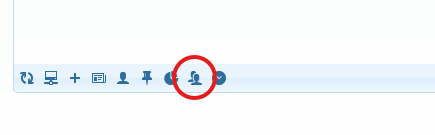
Where to open it
- Open the Activities accounting center.
- Go to the Clock Puncher tab.
- Click Active punched in session members in the toolbar.
What you see in this dialog
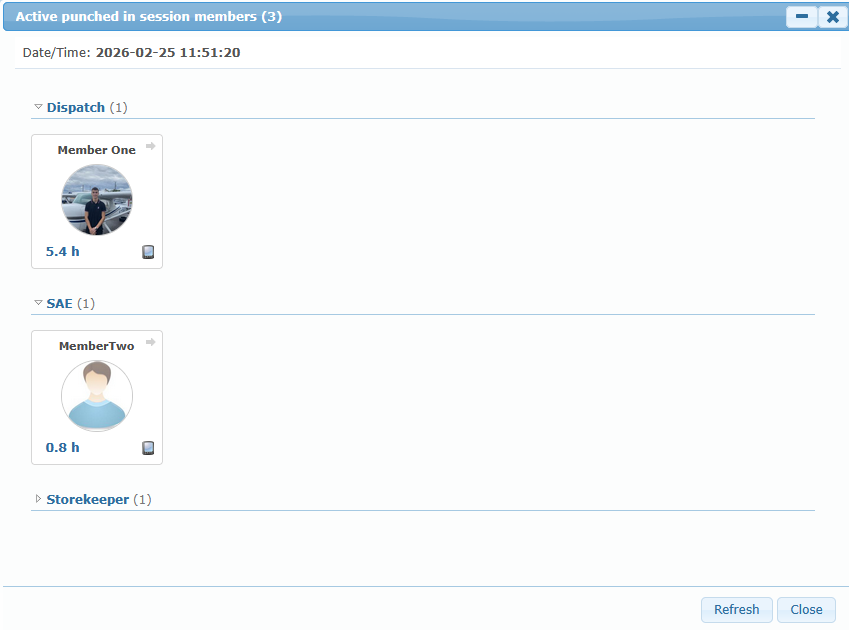
- A live count of currently punched-in members in the dialog title.
- A date/time stamp showing when the list was loaded.
- Member cards grouped by event type (for example Duty, Break, etc.).
- For each member card: name, avatar, and elapsed hours since punch-in.
- A punch-out action icon on each card to close that active session directly.
- A device type icon on each card. Hovering the icon will let you display geolocation
How to punch out a member from this dialog
- Click the punch-out icon on the member card.
- In the punch-out time dialog, confirm or adjust the date/time.
- Click Punch Out.
- The member is removed from the active list when the punch-out is accepted.
Refresh and empty-state behavior
- Use Refresh to reload the list and recalculate active counts.
- If no one is currently punched in, the dialog shows a clear empty message.
Validation and common blocking conditions
- Punch-out requires a valid active punch-in session for the same event type.
- If the session was already closed elsewhere, the system can refuse the action.
- Invalid or inconsistent date/time values are rejected.
- If loading fails, the dialog shows an error and you can retry with Refresh.