
Published 15 February 2026, Updated 26 February 2026
The Punch Geofences manager lets you define geographic zones where mobile app punches are accepted. This is a control layer for field and remote operations, so administrators can decide where app punching is valid.
Important scope: this manager is limited to App Puncher use on mobile phones. It does not change kiosk device behavior and does not affect standard office/admin console punches.
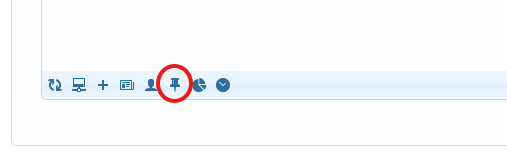
Where to open it
- Open the Activities accounting center.
- Go to the Clock Puncher tab.
- Click Manage geofences.
- The geofence manager dialog opens with the fence list on the left and map/settings on the right.
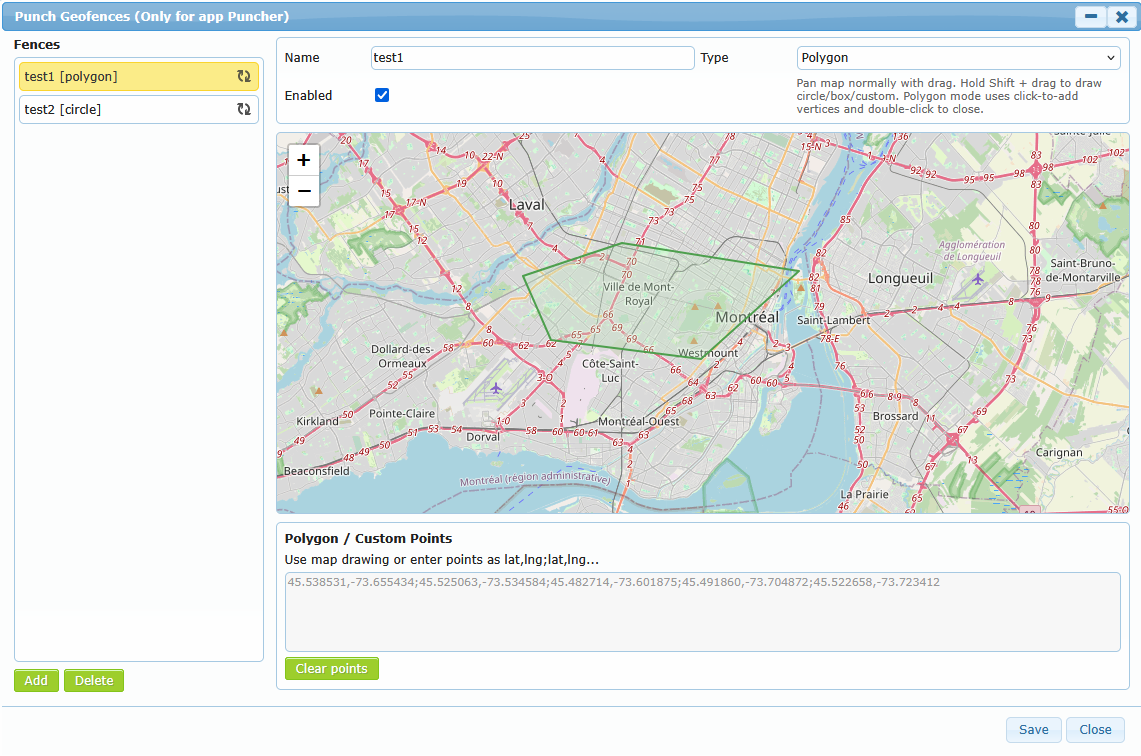
How to create and edit fences
You can configure multiple zones and keep only the ones you want active. Each zone can be enabled or disabled.
Available fence types:
- Circle: center point + radius.
- Box: two opposite corners.
- Polygon: multi-point area.
- Custom form: custom point sequence for complex shapes.
Typical workflow:
- Click Add to create a new fence.
- Set a clear fence name.
- Choose the fence type.
- Draw the shape on the map (or define points for complex forms).
- Keep Enabled checked for active zones.
- Repeat for additional locations.
- Click Save to publish.
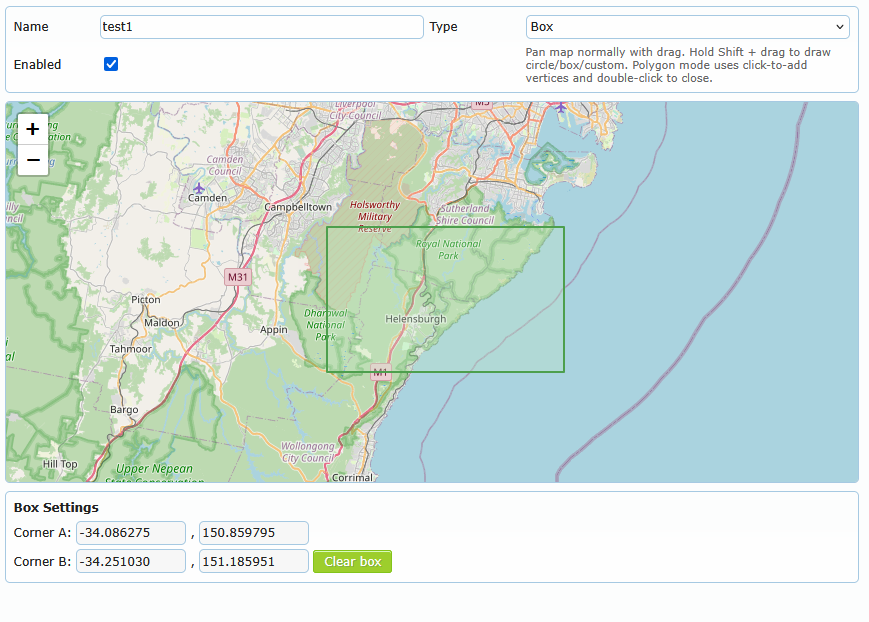
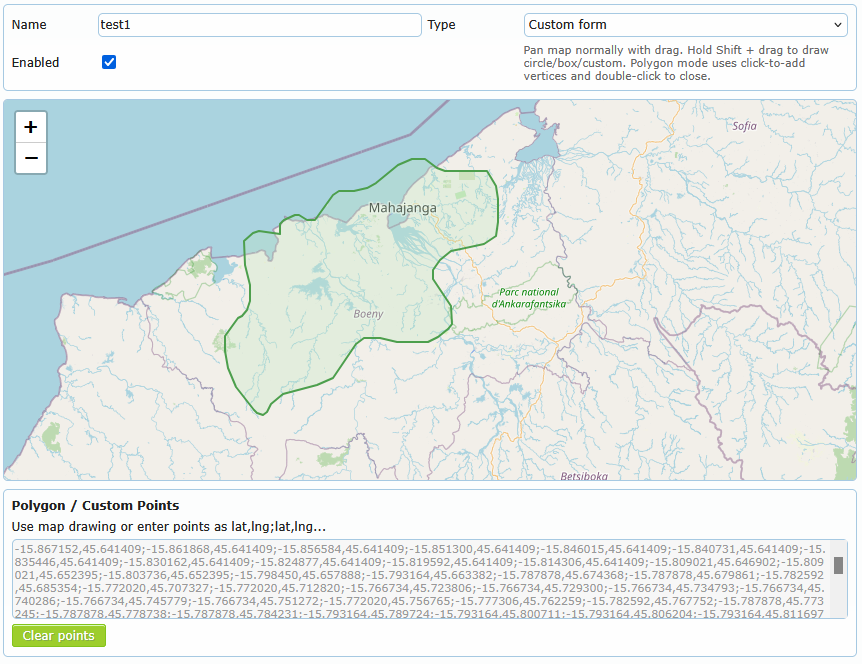
Important note: adding, deleting, or modifying a fence does not save automatically. Users must click Save to keep the changes.
Drawing behavior by shape type
Map navigation: normal drag moves the map. Drawing starts only when the drawing action is used for the selected type.
Circle
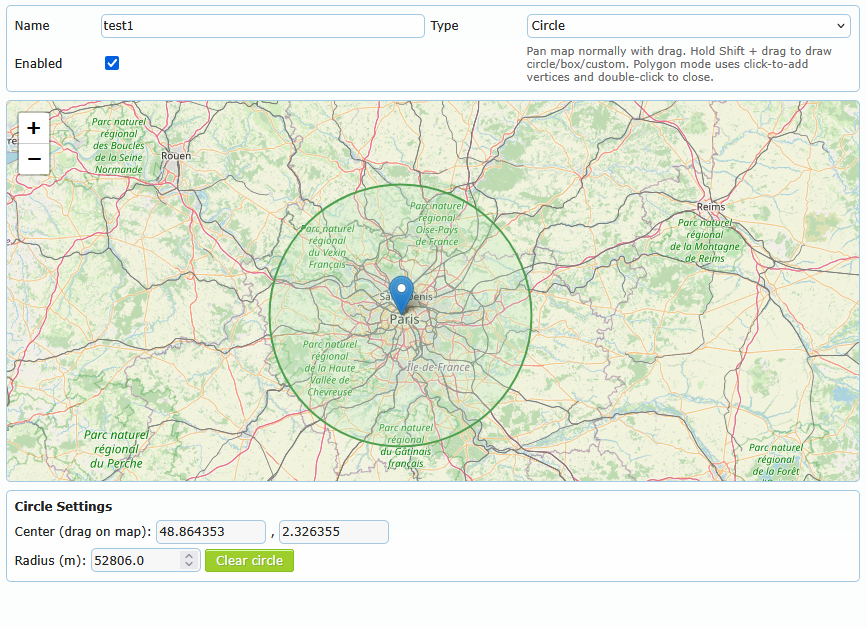
- Keep type on Circle.
- Hold Shift and drag on the map (dashed border).
- The drag start becomes the center, and drag distance becomes the radius.
- If the drawn area is too small or misplaced, use Clear circle and draw again.
- Hold Shift and Drag on the border to change the circle radius (dashed border).
Box
- Keep type on Box.
- Hold Shift and drag diagonally on the map (dashed border).
- The first click is corner A and release point is corner B.
- Use Clear box to remove current corners and redraw.
- Hold Shift and Drag on one border or corner to change the size on the box (dashed border).
Polygon
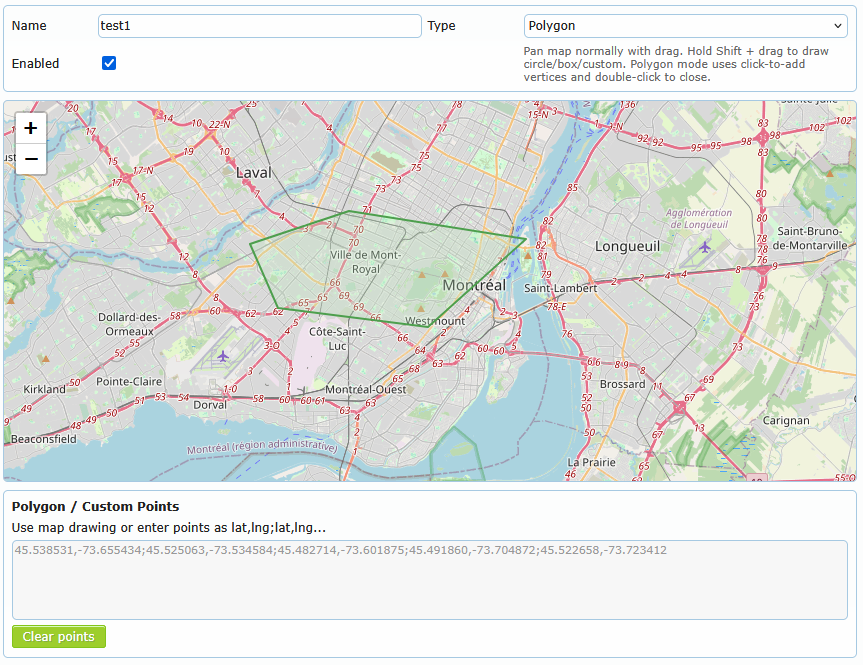
- Keep type on Polygon.
- Click once for each vertex point (no Shift needed).
- Double-click to close/finalize the polygon.
- If you stop with too few points, the area may not be valid for enforcement.
- Use Clear points to restart cleanly.
Custom form
- Keep type on Custom form.
- Use Shift + drag to draw a free-form path that becomes custom points.
- Use Clear points when you want to rebuild the shape.
- Custom form is useful for irregular outlines where circle/box is too broad.
How Clock Puncher treats this information
For App Puncher actions, the system uses the phone location and location accuracy to decide if punch is allowed.
Behavior in practice:
- App Puncher punch-in and punch-out are checked against geofences.
- If phone location is missing, the app punch is rejected.
- If enabled fences exist, the punch must be inside at least one enabled fence area (accuracy margin is considered).
- If the phone location is outside all enabled fences, the app punch is rejected.
- If no enabled fence is configured, there is no geofence area restriction for App Puncher.
To reduce disputes with punching members, Clock Puncher adds reported geolocation accuracy to the geofence check so normal GPS uncertainty is treated fairly.
Admin recommendations
Define slightly larger zones around real working areas to reduce false rejections caused by normal GPS drift. After each change, test with one authorized mobile user inside and outside the expected zone before rollout.