
Published 11 February 2026, Updated 26 February 2026
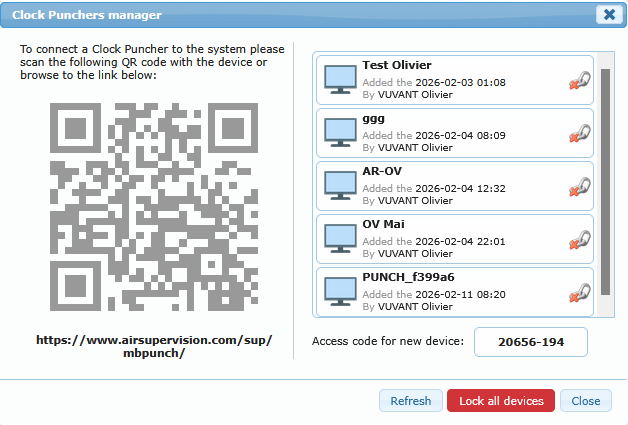
Device management is a security control, not only a setup action. Only approved devices should be allowed to punch, because each approved device is trusted by the system.
Why this matters for security
Adding a device means you explicitly authorize that device to create punch actions. Removing a device immediately blocks it from future kiosk use. This helps prevent unauthorized devices from creating time records.
How to add a device (authorize)
Use this process whenever you onboard a new kiosk device:
- Open Device Manager.
- Generate or read the current access code.
- On the target device, open the punch page and enter the access code when prompted.
- Assign a clear device name.
- Confirm the device appears in the active device list.
After this, the device is authorized and can be used by staff.
How to remove a device (deauthorize)
Use this process when a device is replaced, lost, no longer trusted, or no longer needed:
- Open Device Manager.
- Find the device in the list.
- Disconnect/remove the device.
- Confirm it is no longer active.
Once removed, that device cannot be used as a punch kiosk until it is authorized again.
Device fingerprint and resync note
Each device is identified using a unique fingerprint. This is part of the authorization security model.
If the device operating system is updated, or if key browser/software components are updated, this fingerprint can change. When that happens, the system may treat the same physical tablet/phone as a new device, and you will need to resync (re-authorize) it again using the normal access-code process.
You can also lock all punch devices when needed, for example during maintenance or control windows. While locked, kiosk punches are blocked until unlocked.