
Published 11 February 2026, Updated 26 February 2026
Each line is one action done by one person at one date/time. The table helps you understand who did what, from which device, and from which source.
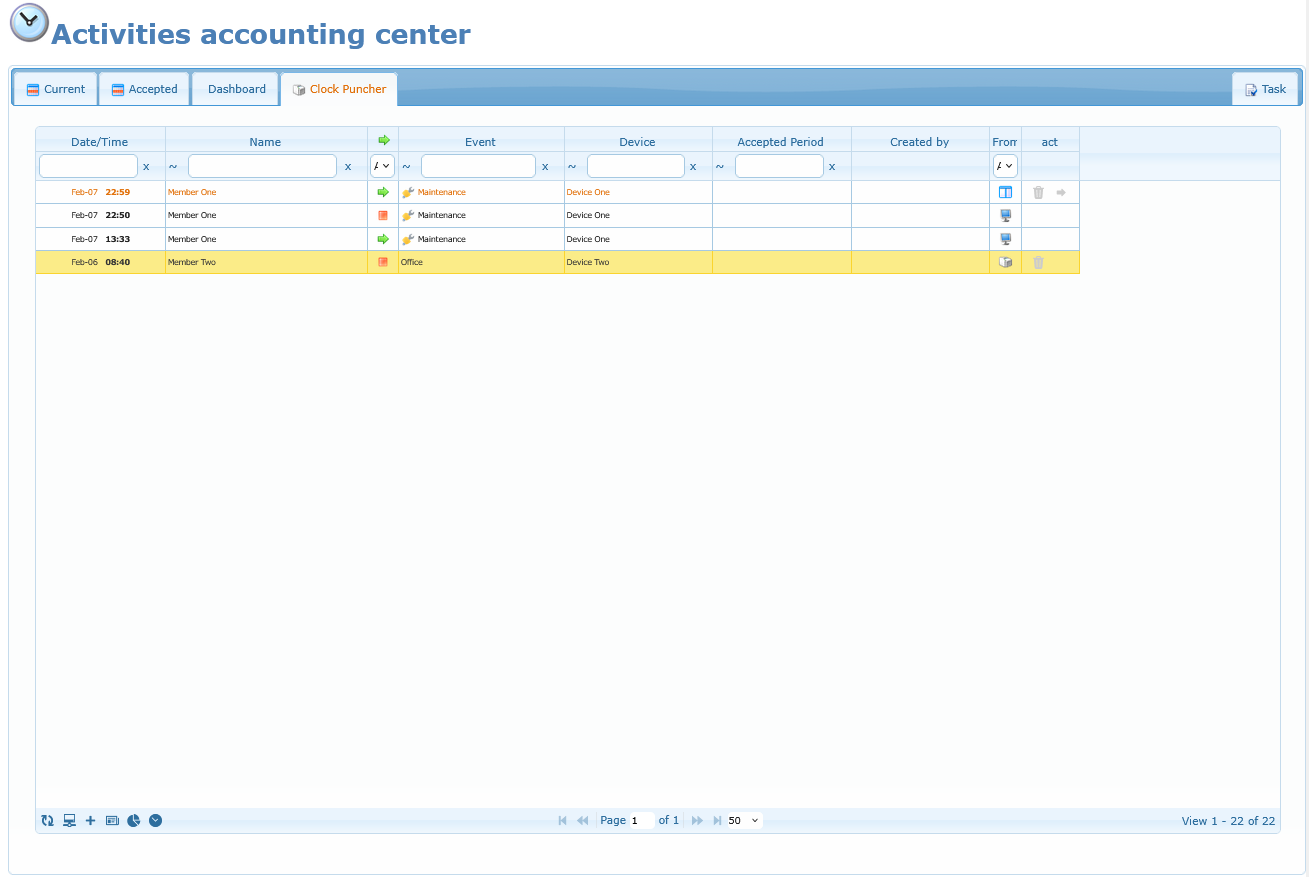
Useful icon meaning:
- Green arrow icon means Punch In.
- Stop icon means Punch Out.
- Source icons indicate where the action came from (user interface, punch device, or admin action).
The Grid buttons
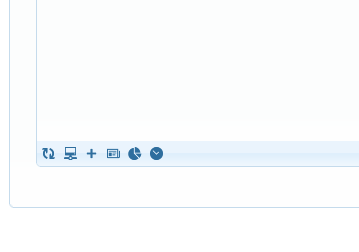
- Refresh the Grid
- Punch Device Management
- Adding manual Punch
- Display statistics
- History log
Search from the grid toolbar
Use the grid toolbar to quickly find specific records without opening extra dialogs.
- In the punch grid toolbar, choose the column you want to search (for example Name, Event, Device, or Origin).
- Enter the value to search.
- Choose the search option/operator.
- Press Enter (or apply search) to refresh the grid.
- Clear the search field to return to the full list.
Search option meanings:
- Contains: shows rows where the value includes your text anywhere.
- Does not contain: excludes rows where the value includes your text.
- Equals: shows only exact matches.
- Not equal: excludes exact matches.
- Starts with: shows rows where the value begins with your text.
- Ends with: shows rows where the value ends with your text.
- Is empty / Is null: shows rows where the value is missing.
- Is not empty / Is not null: shows rows where a value exists.
Main grid action buttons (act)
The act column contains row-level action buttons.
- Trash/Delete button: attempts to delete that punch line.
- Deletion is allowed only when timeline consistency rules allow it.
- If deletion is blocked, use corrective actions (for example manual correction or proper punch-out) instead of forcing removal.
- Punch-out button on active row (arrow icon): appears only for active
Punch Inrows and opens the punch-out time dialog.- Use it to close an open activity directly from the grid.
- The selected punch-out time must be logical (not before punch-in and not in the future).
Use filters when investigating specific people, events, dates, or device behavior.